Feature Introduction
This page introduces the core features and usage of BookmarkSync.
Extension Main Interface
Click the BookmarkSync icon in the browser toolbar to open the extension main interface:
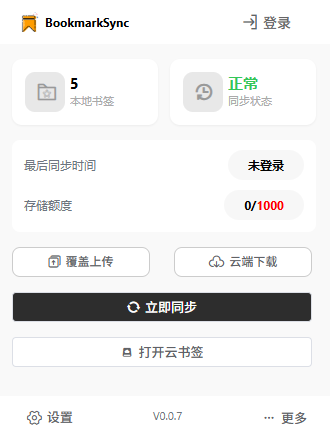
The main interface provides the following quick features:
- Open Cloud Bookmarks: Quick access to cloud bookmarks management page
- Open Private Bookmarks: Quick access to private bookmarks management page (password verification required)
- Manual Sync: Execute a bookmark sync immediately
- Override Sync: Force local bookmarks to override cloud data (use with caution)
- Personal Center: View account information and sync records
Storage Quota Description
BookmarkSync provides each user with:
- ✅ 1000 bookmarks free storage quota
- ✅ Folders and categories do not count toward quota
- ✅ Cloud bookmarks and private bookmarks share this quota
- ✅ Permanently free, never reduced
📌 Tip: The current version does not provide expansion service. If your bookmark count exceeds 1000, you cannot continue adding new bookmarks.
Cloud Bookmarks Feature
What are Cloud Bookmarks
Cloud bookmarks are a separate bookmark storage space, separated from the browser bookmark bar:
- Storage Location: Saved only in the cloud, does not occupy browser bookmark bar
- Access Method: Open cloud bookmarks management page through the extension
- Use Cases: Store infrequently used but needed websites
How to Use Cloud Bookmarks
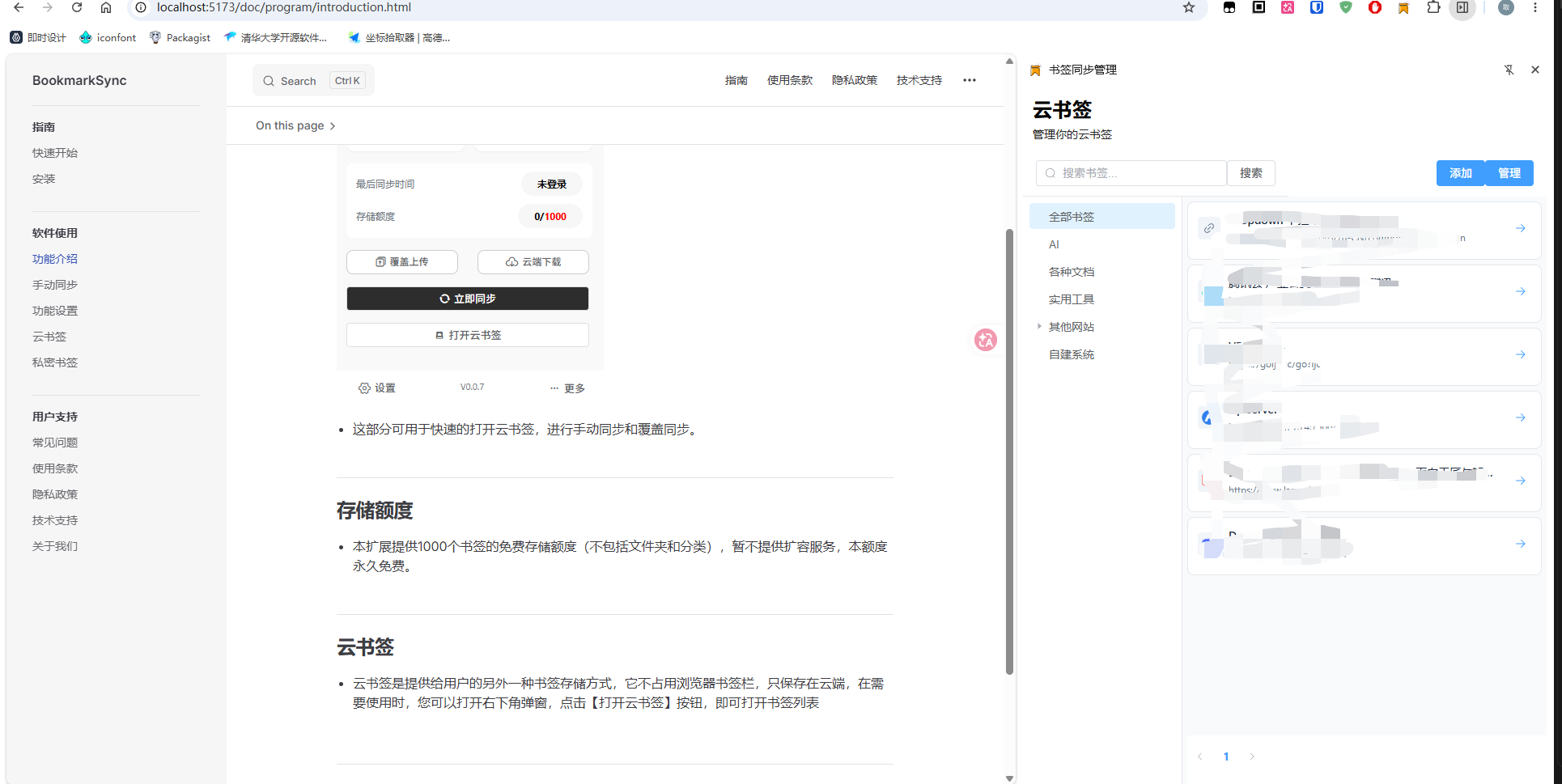
Open Cloud Bookmarks:
- Click the extension icon
- Select "Open Cloud Bookmarks" button
- Enter cloud bookmarks management page
Add to Cloud Bookmarks:
Method 1: Manual Add
- Click the "Add Bookmark" button in cloud bookmarks management page
- Fill in title and URL, select category
Method 2: Move from Browser Bookmarks
When you bookmark a website in the browser, the extension will show a notification asking where to save:

💡 Note: Due to browser limitations, you need to manually click the extension icon in the upper right corner to see the notification.
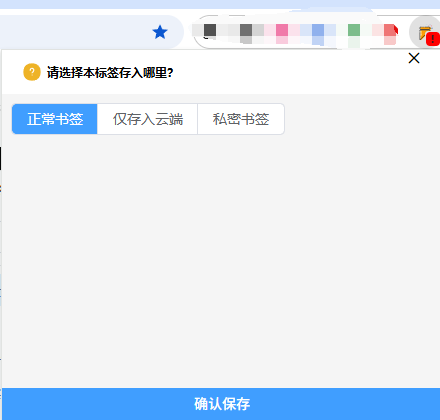
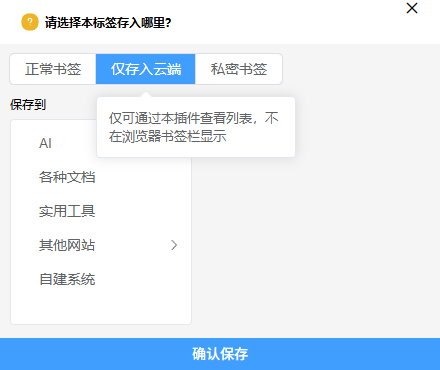
In the notification you can choose:
- Normal Bookmark: Save in browser bookmark bar, will automatically sync to cloud
- Save to Cloud Only: Save as cloud bookmark, automatically removed from browser bookmark bar, only accessible through cloud bookmarks feature
Category Management:
- Cloud bookmarks support multi-level category structure
- Can create folders to organize bookmarks
- Supports drag-and-drop sorting and batch management
📖 Detailed Tutorial: Check Complete Cloud Bookmarks Documentation for more features.
Private Bookmarks Feature
What are Private Bookmarks
Private bookmarks are an enhanced version of cloud bookmarks with added password protection:
- Access Restriction: Requires entering a 6-digit password to access
- Security Level: Higher encryption protection than cloud bookmarks
- Use Cases: Store sensitive or privacy-related URLs
How to Use Private Bookmarks
First-time Setup:
- Click the extension icon and select "Open Private Bookmarks"
- First use requires setting a 6-digit password
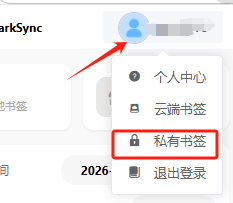
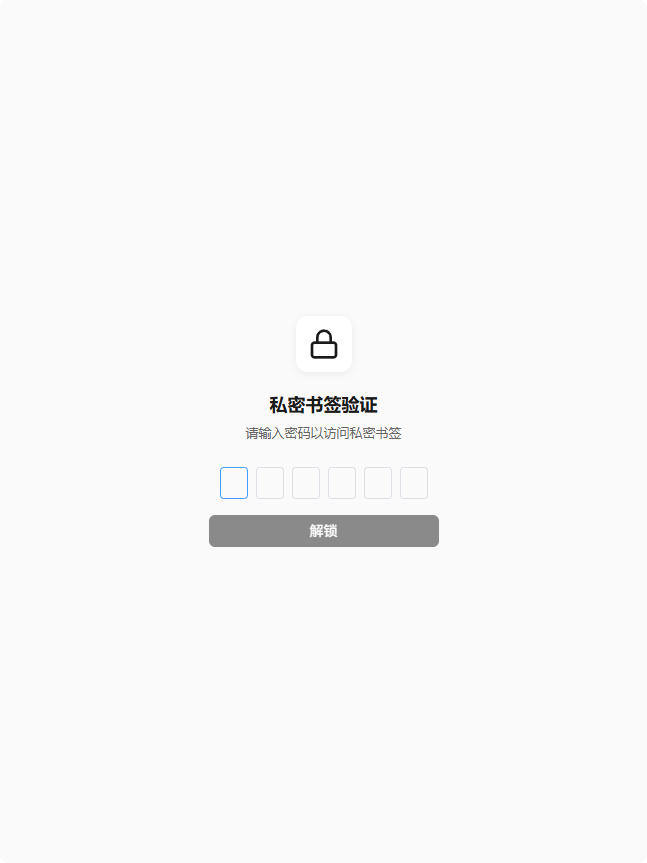
⚠️ Important Warning: To ensure absolute privacy of private bookmarks, the password cannot be modified or reset once set. If you forget the password, you can only clear all private bookmark data. Please remember your password!
Daily Use:
- Click the extension icon and select "Open Private Bookmarks"
- Enter 6-digit password for verification
- After successful verification, enter private bookmarks management page
Password Validity Period:
- Password is valid in the current browser session
- Password expires after closing the tab
- Need to re-enter password on next access
Usage Restrictions:
💡 Tip: Private bookmarks and cloud bookmarks cannot be opened simultaneously. If you've already opened the cloud bookmarks page, please close it first before opening private bookmarks.
📖 Detailed Tutorial: Check Complete Private Bookmarks Documentation for more features.
Bookmark Sync Feature
Auto Sync
BookmarkSync automatically monitors browser bookmark changes:
- ✅ Real-time Sync: Bookmark add/delete/modify operations immediately sync to cloud
- ✅ Background Operation: No manual operation needed, executes automatically in background
- ✅ Multi-device Sync: Devices using the same account automatically stay consistent
Manual Sync
You can also manually trigger sync at any time:
- Click the extension icon
- Select "Manual Sync" button
- Wait for sync to complete
Override Sync
When cloud and local data are inconsistent, you can use override sync:
- Local Override Cloud: Override cloud data with current browser's bookmarks
- Cloud Override Local: Override current browser's bookmarks with cloud data
⚠️ Warning: Override sync will cause data loss, please confirm before use!
View Sync Records
To view sync history:
- Open extension main interface
- Click "Personal Center"
- View "Sync Records" tab
Records will show:
- Sync time
- Sync type (auto/manual)
- Sync status (success/failure)
- Number of bookmarks synced
Settings Options
In the "Settings" page of personal center you can configure:
- Auto Sync: Enable/disable auto sync feature
- Sync Frequency: Set time interval for auto sync
- Language: Select interface display language
- Theme: Switch between light/dark theme
📌 Note: Settings are saved locally on the device only, multiple devices need to be configured separately.
Next Steps
- Check Cloud Bookmarks Documentation for detailed cloud bookmarks features
- Check Private Bookmarks Documentation for detailed private bookmarks features
- Check Settings Guide to learn how to configure the extension