Settings Guide
This page describes how to configure various features of the BookmarkSync extension.
Access Settings Page
- Click the BookmarkSync icon in the browser toolbar
- Click the "Personal Center" button on the main interface
- Enter the personal center page
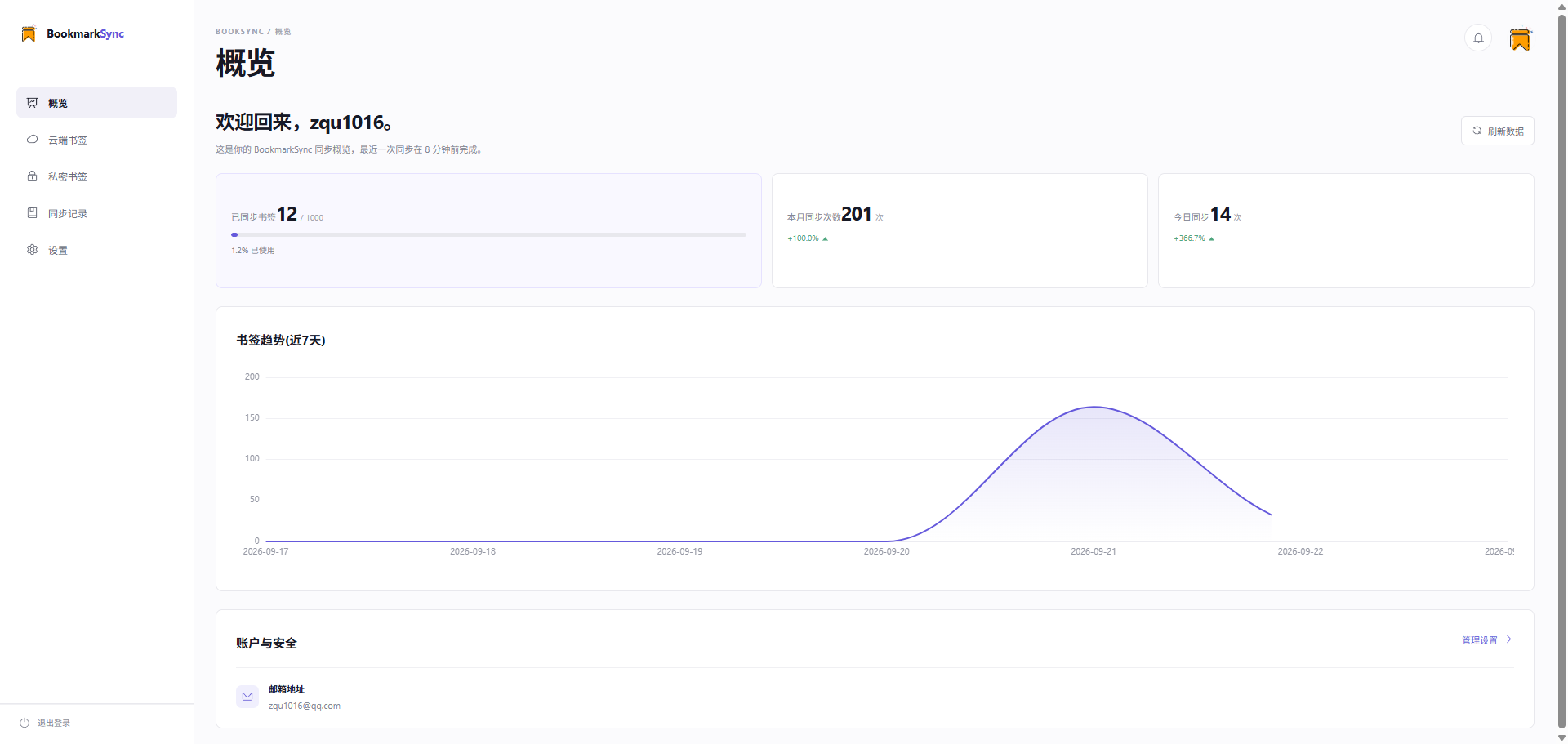
The personal center includes the following function modules:
- Cloud Bookmarks Management: View and manage cloud bookmarks
- Private Bookmarks Management: View and manage private bookmarks (password verification required)
- Sync Records: View historical sync records
- Settings: Configure various extension parameters
Cloud Bookmarks Management
In the "Cloud Bookmarks" tab of personal center, you can quickly manage cloud bookmarks:
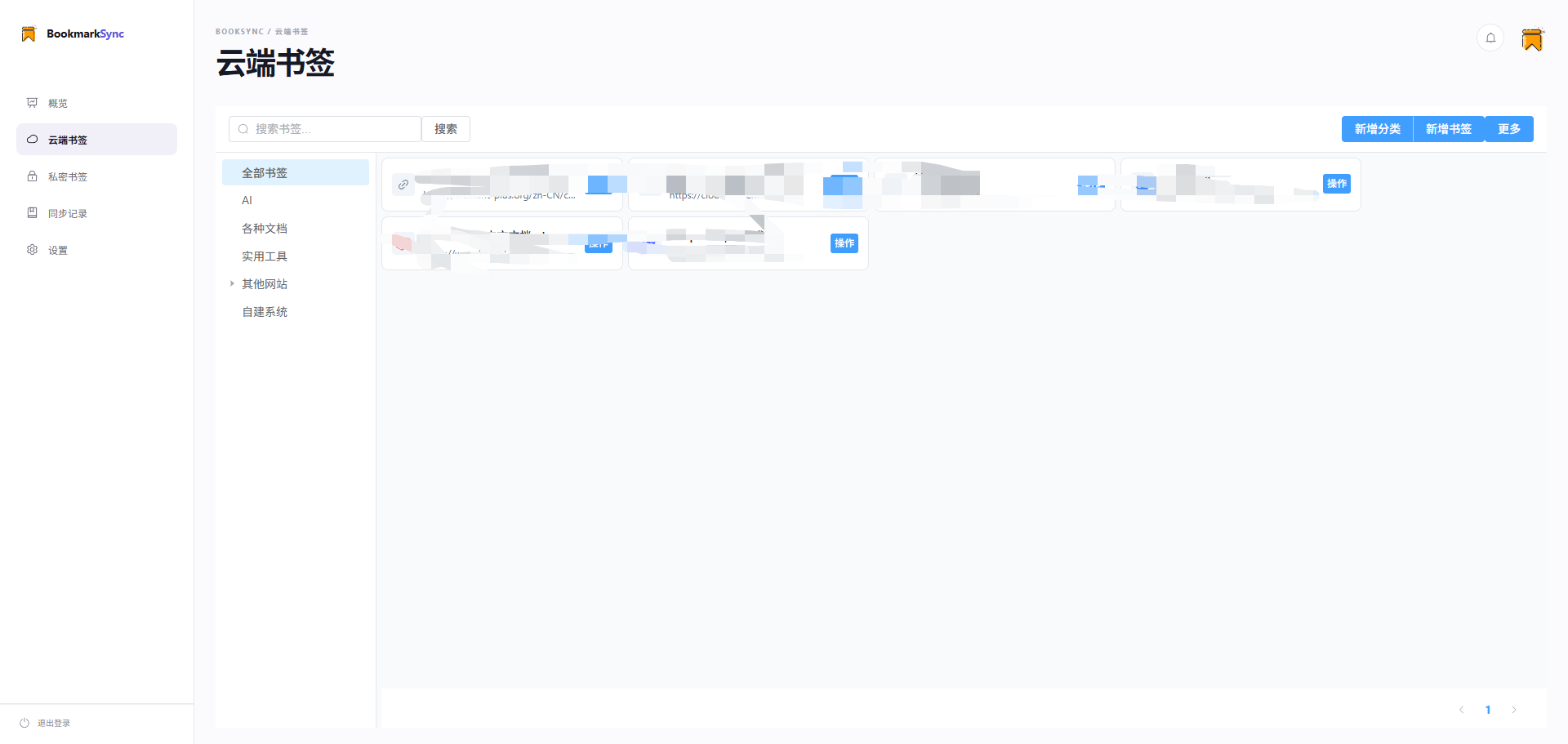
Feature Description:
- Bookmark List: Display all cloud bookmarks
- Category Tree: Left side shows bookmark category structure
- Search: Search bookmarks by title or URL
- Sort: Customize bookmark display order
- Add/Edit: Add new bookmarks or edit existing ones
- Batch Operations: Batch move or delete bookmarks
💡 Tip: This is a simplified management interface for cloud bookmarks. For full features, please click the "Open Cloud Bookmarks" button on the extension main interface.
📖 Detailed Tutorial: Check Complete Cloud Bookmarks Documentation for all features.
Private Bookmarks Management
In the "Private Bookmarks" tab of personal center, you can manage private bookmarks:
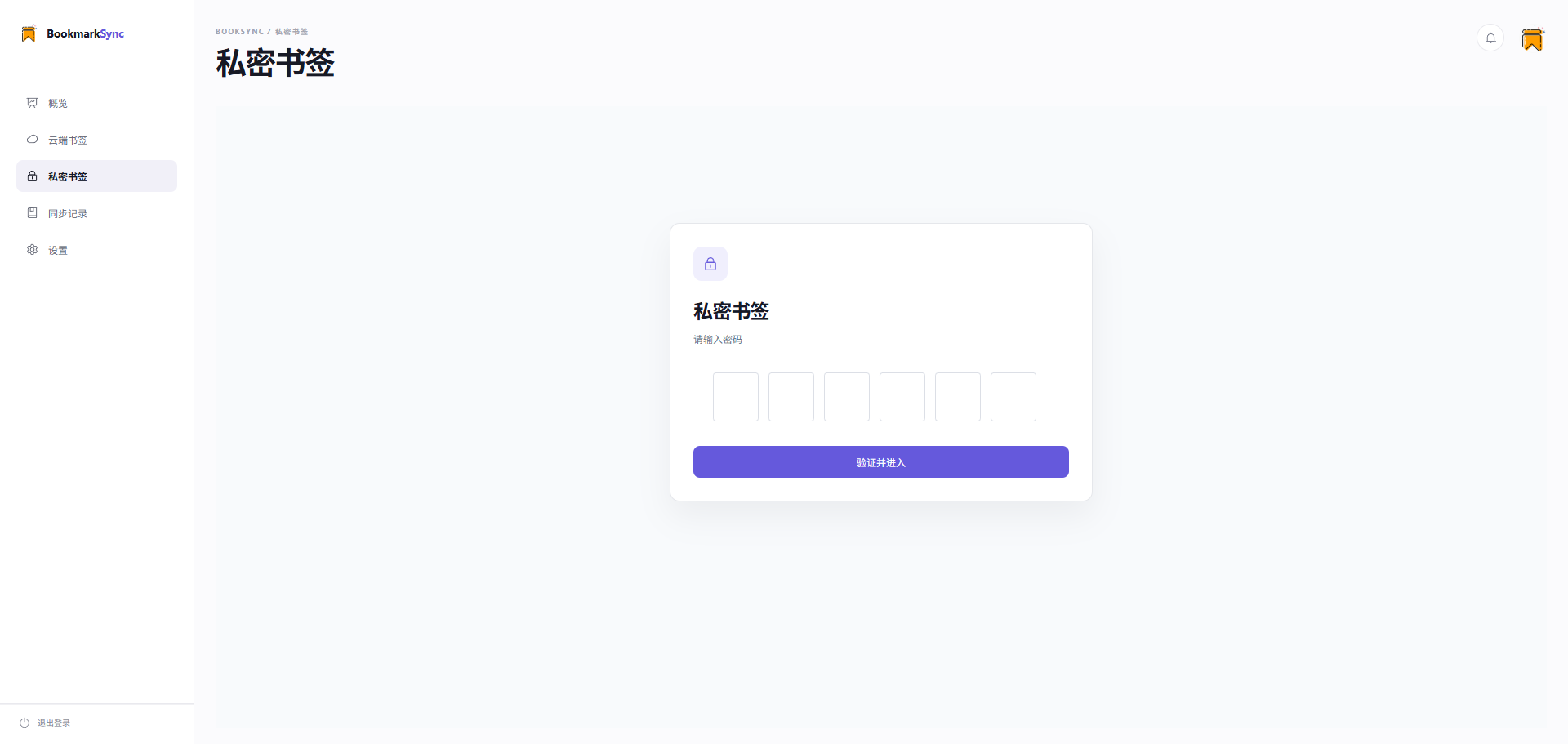
Access Process:
- Click the "Private Bookmarks" tab
- First Use: Set a 6-digit password
- Daily Use: Enter password to verify identity
- After verification, you can view and manage private bookmarks
Password Validity Period:
- Password is valid in the current browser tab
- Automatically expires after closing the tab
- Need to re-enter password next time
⚠️ Important Note: Private bookmark password cannot be reset. If you forget the password, you can only clear all private bookmark data. Please keep your password safe!
📖 Detailed Tutorial: Check Complete Private Bookmarks Documentation for all features.
Sync Records
In the "Sync Records" tab, you can view all bookmark sync history:
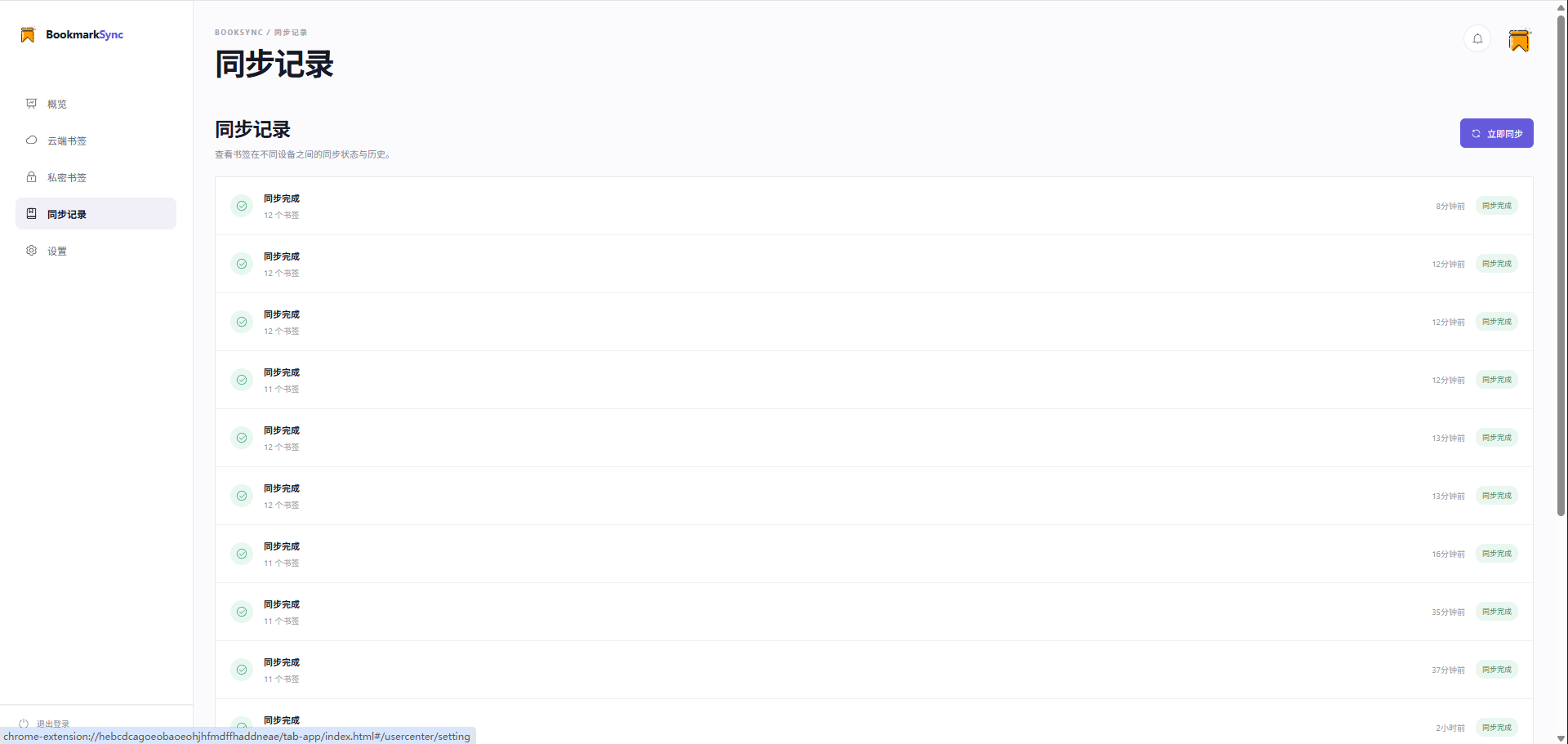
Record Information:
Each sync record displays the following information:
- Sync Time: Specific time of sync execution
- Sync Type:
- Auto Sync: Automatically triggered in background
- Manual Sync: Manually triggered by user
- Override Sync: Force override cloud or local data
- Sync Status:
- ✅ Success: Sync completed
- ⚠️ Conflict: Data conflict detected
- ❌ Failed: Network error or other issues
- Bookmark Count: Number of bookmarks in this sync
Operation Features:
- View detailed logs
- Re-execute sync (for failed records)
- Clear history records
Settings Options
In the "Settings" tab, you can configure extension runtime parameters:
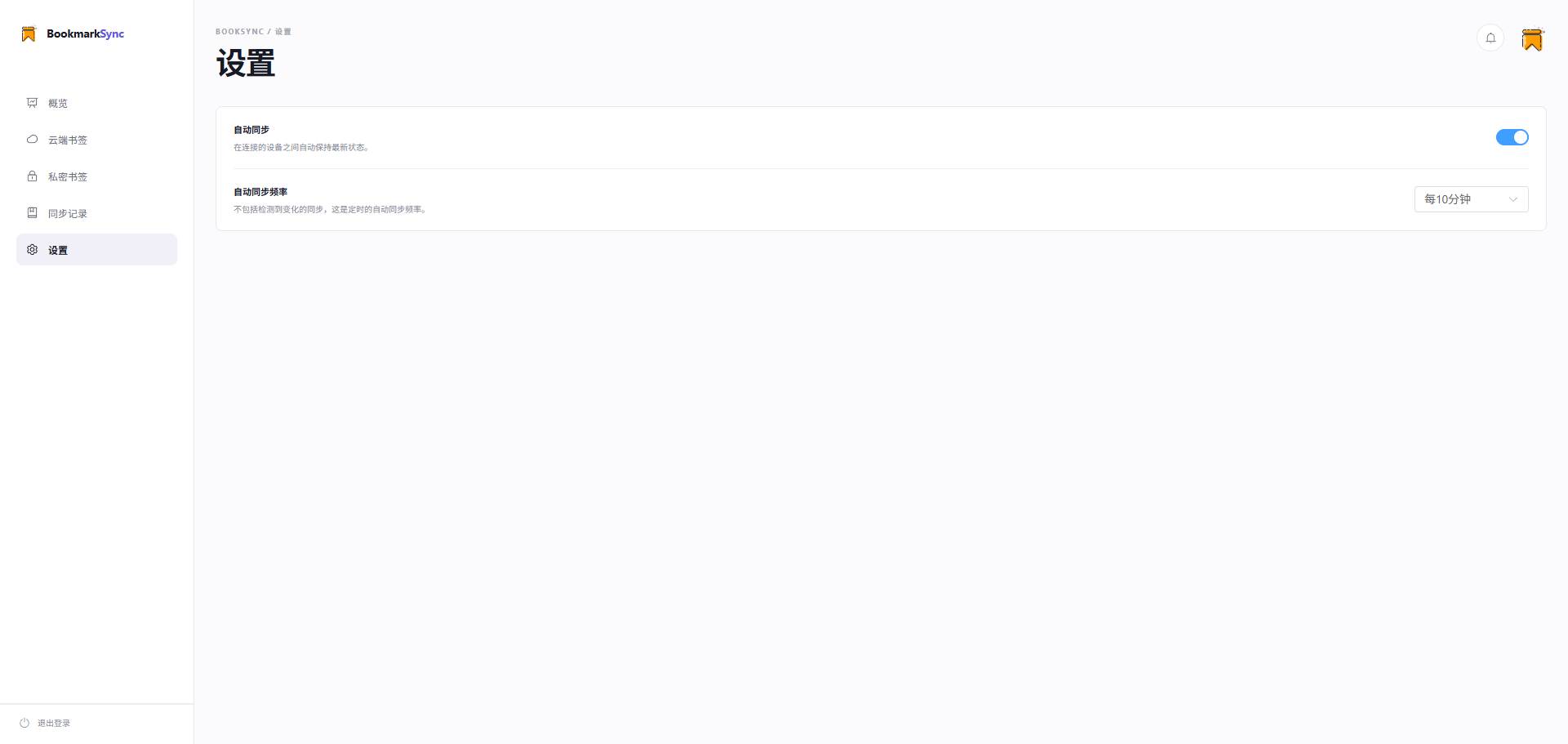
Sync Settings
Auto Sync Switch:
- Enabled: Extension will automatically sync bookmarks to cloud at set intervals
- Disabled: Only sync on bookmark changes or manual trigger
📌 Note: Even if auto sync is disabled, real-time changes in the bookmark bar will still sync immediately. This switch only controls timed background sync.
Sync Frequency:
Set time interval for auto sync:
- 15 minutes
- 30 minutes (recommended)
- 1 hour
- 2 hours
- Custom
💡 Recommendation: Recommended to set to 30 minutes, ensuring timely data sync without frequently using network resources.
Sync Range:
- All Bookmarks: Sync all browser bookmarks
- Specified Folders: Only sync selected bookmark folders
- Exclude Folders: Skip certain folders during sync
Interface Settings
Language Selection:
- Simplified Chinese
- English
- Other languages (continuously adding)
Theme Mode:
- Light Theme: Suitable for daytime use
- Dark Theme: Suitable for nighttime use
- Follow System: Automatically follow operating system theme settings
Display Settings:
- Bookmark card size
- Items per page
- Icon display method
Privacy Settings
Private Bookmarks:
- Modify private bookmark password (not supported in current version)
- Set auto lock time: How long of inactivity before automatically exiting private bookmarks
Data Management:
- Export bookmark data (in development)
- Clear cloud bookmarks
- Clear private bookmarks
- Delete sync records
⚠️ Warning: Clear operations cannot be recovered, please proceed with caution!
Notification Settings
Sync Notifications:
- Show notification on successful sync
- Only show notification on sync failure
- Disable all notifications
Bookmark Save Notifications:
- Ask where to save when saving bookmarks (browser bookmarks vs cloud bookmarks)
- Always save as browser bookmarks
- Always save as cloud bookmarks
Advanced Settings
Cache Management:
- Clear local cache
- Set cache size limit
- Cache expiration time
Debug Mode:
- Enable debug logging (for troubleshooting)
- Export log files
- View extension version information
Settings Notes
Settings Sync
⚠️ Important Note: Extension settings are saved locally only and will not sync across devices.
If you use BookmarkSync on multiple computers or browsers, you need to configure these settings separately on each device.
Settings Backup
It's recommended to regularly backup your settings:
- Select "Export Settings" in "Advanced Settings"
- Save the configuration file locally
- Can quickly configure on other devices via "Import Settings"
Restore Default Settings
If settings have issues:
- Select "Restore Default Settings" in "Advanced Settings"
- After confirming the operation, all settings restore to initial values
- Will not affect bookmark data
Common Questions
Q: Do I need to restart the browser after modifying settings?
A: Most setting modifications take effect immediately without restart. A few settings involving underlying functions (such as debug mode) may require restarting the extension.
Q: How to use the same settings on multiple devices?
A: Current version settings do not support cloud sync. You can:
- Export settings file on one device
- Import the settings file on other devices
- Or manually configure the same on each device
Q: Will clearing cloud bookmarks affect browser bookmarks?
A: No. Clearing cloud bookmarks will only delete cloud bookmark data stored in the cloud, will not affect normal bookmarks in the browser bookmark bar.
Q: What if I forget private bookmark password?
A: Private bookmark password cannot be recovered or reset. If you forget the password, you can only delete all private bookmark data through "Clear Private Bookmarks", then set a new password.
Q: Will auto sync consume a lot of data?
A: No. Sync only transfers text information of bookmarks (title, URL, etc.), the data amount is very small. Even with frequent sync, each time is only a few KB to tens of KB of data.
Next Steps
- Check Feature Introduction to learn the core features of the extension
- Check Cloud Bookmarks Documentation to learn cloud bookmarks usage
- Check Private Bookmarks Documentation to learn private bookmarks usage